Webround Documents
Webround Documents is the content orchestration tool integrated into the Webround ecosystem that allows you to create professional graphics and documents without leaving your workspace.
Think of it as a Canva-like engine born for efficiency, designed for those who need millimeter precision and data integration.
The suite is free for all profiles and includes:
- 100 savable Documents.
- 25 ready-to-use Templates.
Two modes, one Engine
Webround Documents operates on two distinct tracks that cover every business need:
- Static Composition: Free design via drag-and-drop editor for manual graphics.
- Dynamic Composition (Commerce): Automation via the management system to generate price lists, catalogs, and invoices with real data.
Documents vs Templates: What changes?
Before starting, it is important to understand the roles of these entities within Webround, as they have different operational purposes.
Documents
A Document is your final graphic composition. It is the concrete asset processed by the system to be transformed into ready-to-use outputs such as PDF, PNG, or WebP.
- Example: A specific brochure for an event, a single invoice, today's social media post.
- Note: Any finished document can be converted into a Template to be reused in the future.
Templates
A Template is a preset starting point, designed to maintain visual and structural consistency over time. It can be used in two ways:
- Static Template (Brand Identity): A model that preserves your brand's color codes, preset fonts, or fixed sections (e.g., a common footer for all social media pages or a company letterhead).
- Dynamic Template (Data-Driven): A document full of placeholders ready to be "filled." Think of a product technical sheet, a workout plan for a personal trainer's clients, or a quote template.
Flexibility of use
The advantage of the Webround system is its transversality: a template can be used both as a base for a static document (which you will then edit manually) and as a matrix for a dynamic document to be filled instantly with data coming from the WR Commerce management system.
1. Static Composition (Free Design)
This mode is ideal for creating flyers, brochures, social media graphics, or company documents starting from scratch or from a predefined template.
First Steps
- Authentication: Make sure you are logged into your Webround account.
- Accessing the section: Navigate the side menu and click on Documents.
- New Project: If it's your first time, open the template library and select "Empty Document".
- Setup: Specify a Name for the document and choose the Format (e.g., A4, 1080x1080, etc.). You are ready to design.
Editor Guide
If you are already familiar with the site editor (Drafts), you will feel right at home: the rendering engine and interaction logic are identical.
Page Management
Right-Click (or Ctrl + Click on Mac) in an empty area of the page to open the Contextual Menu. From here you can manage:
- The background color of the artboard.
- The insertion of a background image.
Inserting Components
Use the Button located at the top left. The elements panel will open: drag what you need (text, images, buttons) directly onto the canvas.
Editing and Style
Every component can be customized to the millimeter:
- Right-Click (or
Ctrl + Click) on a single component to open the properties panel. - Manage borders, shadows, advanced typography, and opacity.
For a complete overview of component logic, consult our guide: Approach to editing components.
2. Composition via WR Commerce
This mode transforms your document into a dynamic template. Instead of writing static text, you can link graphic components directly to data from your Webround Commerce database.
Placeholders and Data Mapping
The secret of dynamic composition lies in Placeholders. During the editing phase of a document, each component (text or image) can be marked with placeholders linked to specific entities. Drag a text wrapper or an image, right-click, and open the menu. You will be able to access all available placeholders:
- Product Fields: A text wrapper can support placeholders like
product.nameorproduct.description. - Product Images: Use
product.imageas the placeholder value. - Customer Fields: A text wrapper can support placeholders like
customer.nameor specific metadata.
Generating the document
Once the template with placeholders is prepared, generation happens directly from the operational heart of your business:
- Access the Webround Commerce management system related to your draft.
- Scroll to the bottom of the sidebar.
- Locate and click on the Documents section (identified by the icon).
- Select the template or document you created earlier.
Automatic Compilation
The system is "Data-Aware": it will automatically recognize which placeholders you have inserted and guide you step by step.
Practical example:
If you inserted the product.name placeholder in your template, the Webround Documents builder will automatically open a product selector. Once the product is chosen from your catalog, the system will extract the original name and inject it exactly where you placed the placeholder.
The same automation applies to images: by selecting a product, the document's image component will update with the main photo present in the management system.
Webround Documents is currently in the Beta phase. At the moment, compatibility is guaranteed and tested for single product data and the related relationship with images.
We are working to refine the system and extend integration to all fields and entities available in the Webround ecosystem in future developments.
3. Exports and Dimensions
After completing your document, you are ready to export. Thanks to the left section of the editor, identified by the Webround logo, you can access the export and size modification area.
Here it will be possible to change the document format or conclude the work with a direct export in various formats, including PDF, PNG, and WebP.
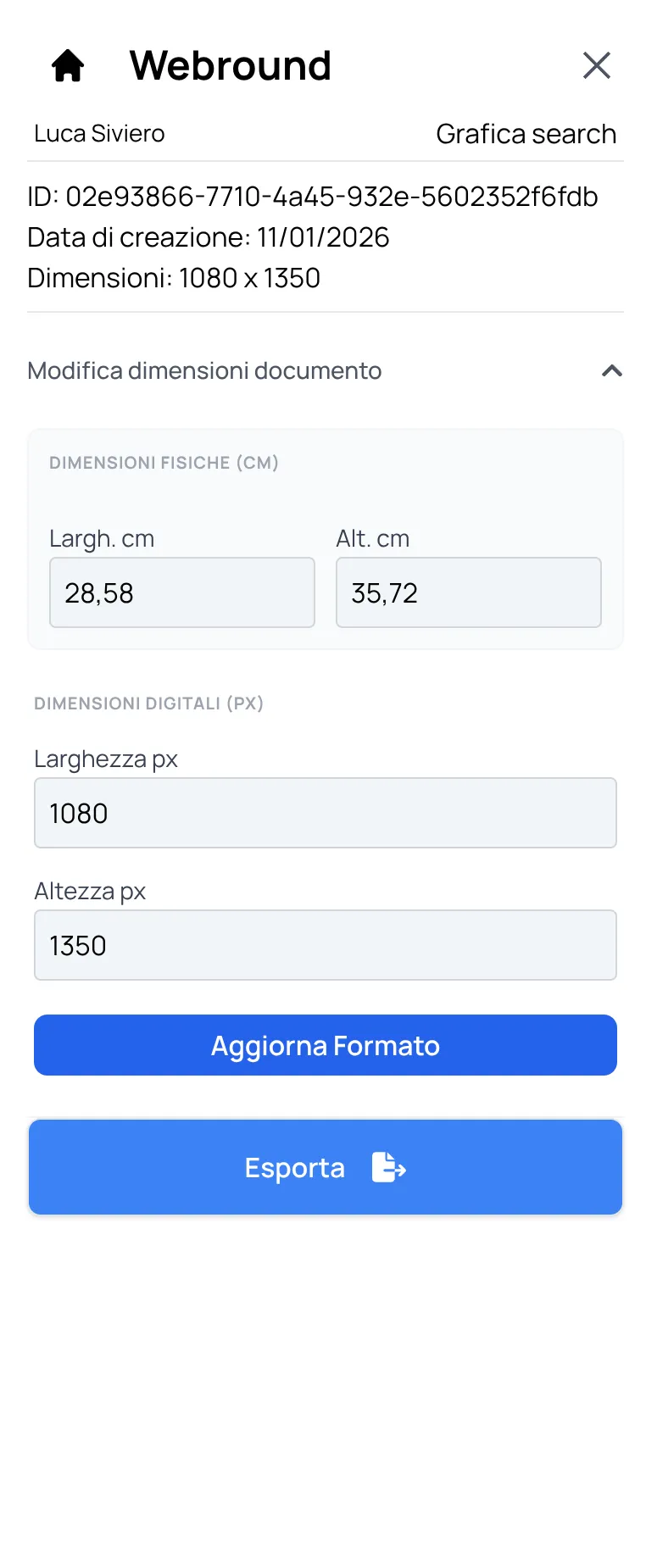
Change file dimensions, or click Export to start the export in a format of your choice.