Left Sidebar
The left sidebar, accessible via the W icon, is the panel dedicated to managing the structure and global configurations of your site.
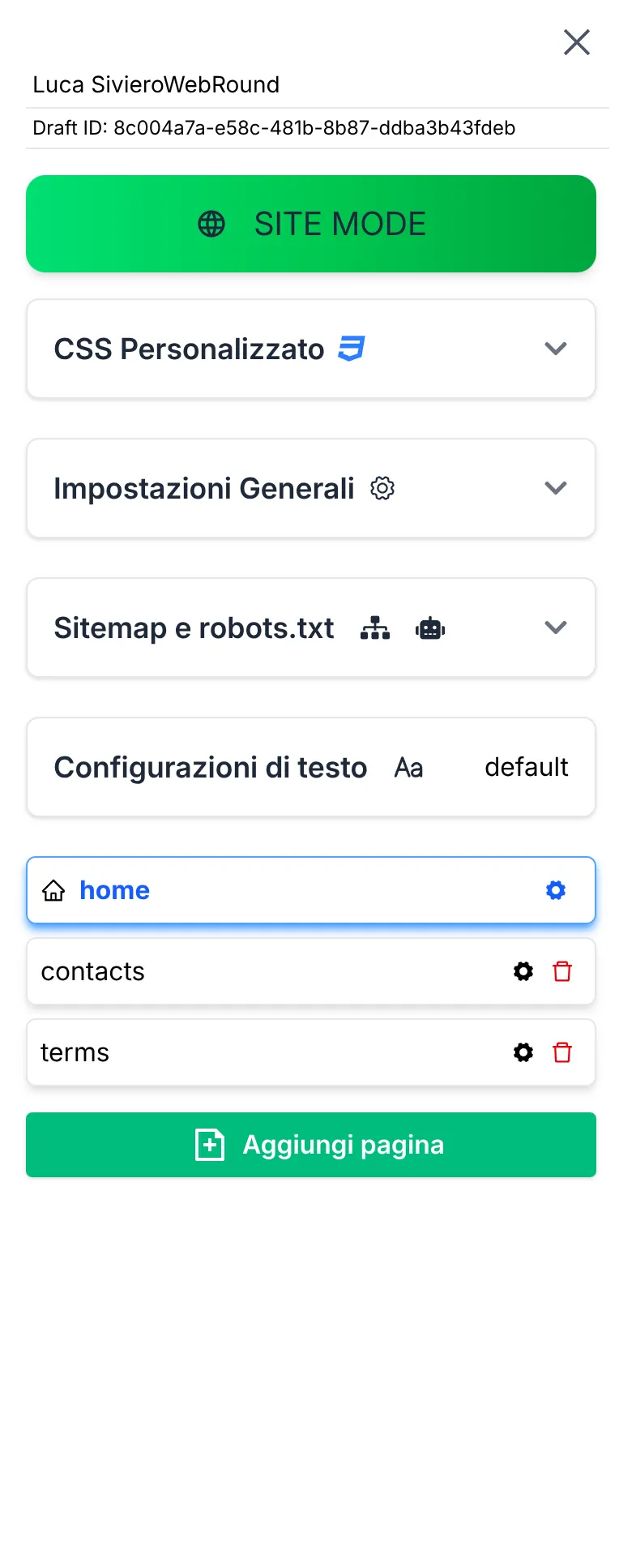
Management of pages, CSS, and global configurations.
Static Area
In this section, you manage everything related to the foundation of your website.
Page Management
At the bottom of the sidebar, you will find the tools to organize your content:
- Add page: The green button to create new pages.
- Settings (Gear icon): Allows access to page-specific options, such as locking the scroll or hiding the header.
- Delete: Allows you to permanently delete the page.
Custom CSS
At the top, you can access the CSS editor. Here you can write pure CSS code and define custom classes that will be directly available for all drag-and-drop components in the builder. No other types of code can be inserted here.
General Settings
This allows you to manage the SEO of the site and individual pages. You can edit meta tags, og:graph, title, favicon, and description, with specific configurations for each page and active language.
Sitemap and Robots.txt
Here you can manage the rules for generating the static sitemap and the robots.txt file. The static page sitemap will be included in a sitemap-index.xml, which will also contain references to all other store sitemaps (dynamic pages). Remember to generate the sitemap for your store within the WR Commerce management panel!
Text Configurations
In this section, you can add new languages and manage their configuration. This is essential for managing hard-coded components such as product pages, the cart, the account section, and system notification messages.
Shop Area
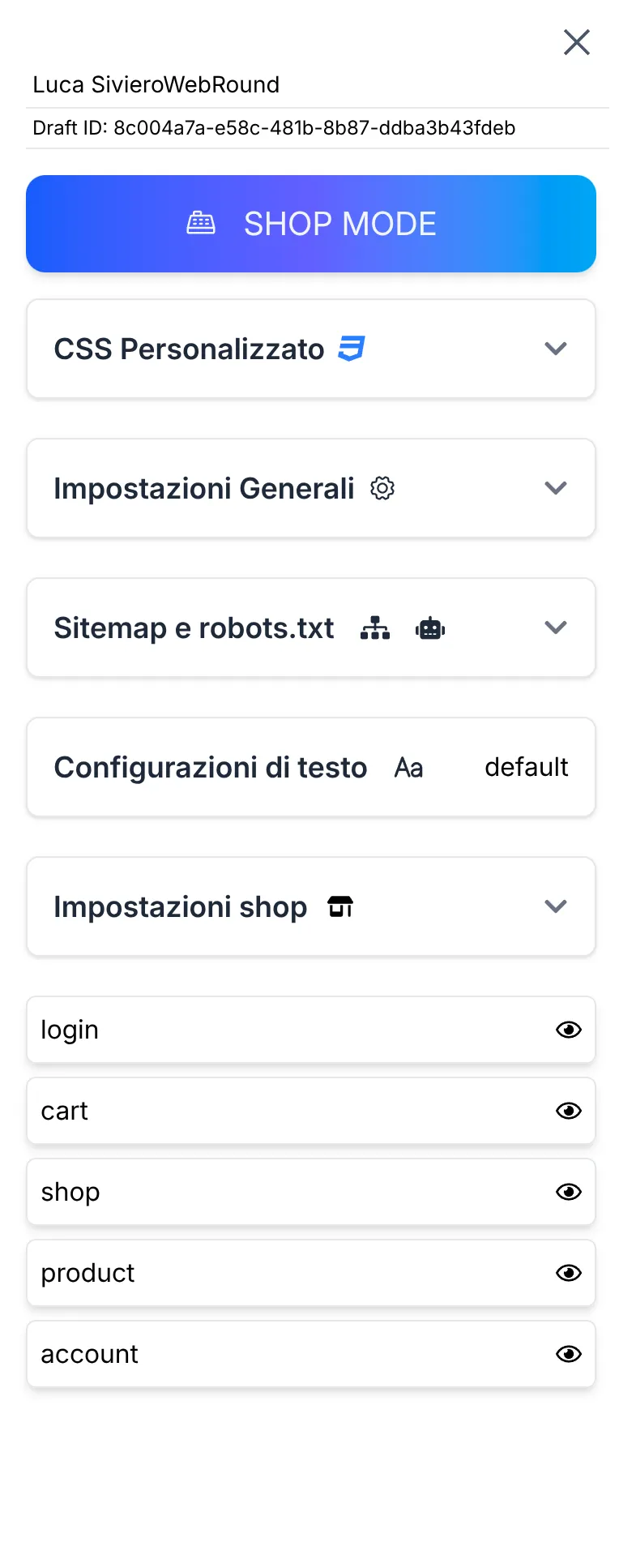
Management of shop pages and related configurations.
Page Management
At the bottom of the sidebar, you will find tools to organize pages: Hide page: The eye icon allows you to hide or show pages on your site.
By default, all pages are visible. However, in some cases, you may want to hide specific pages, such as the login page. In this case, click the eye icon: it will show a slashed symbol, indicating it will not be visible in the public version of your site.
Remember that if you want to remove login functionality from your site, you must hide the login page and, most importantly, disable this feature within your Webround store.
Shop Settings
Through these settings, you can hide graphic components related to certain features (such as reviews) or choose to display net prices instead of gross prices in your catalog and product pages.